PDF-A-go-slim: a browser-based PDF optimizer
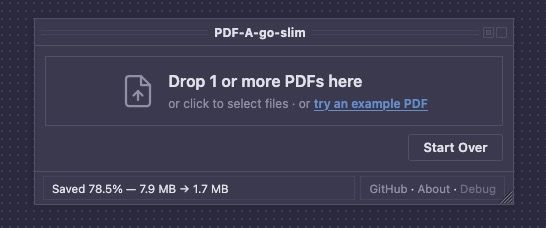
Eight optimization passes, zero uploads — reduce PDF file size entirely in your browser.
PDF bloat is everywhere. A clean 32 KB PDF was edited in Adobe Illustrator for a minor layout tweak. After saving it was 198 KB — a 6x increase for a cosmetic change.
A simple deletion of an element resulted in the new embedding of full TrueType copies of Helvetica and Courier, layers of application metadata, and duplicated font references in multiple formats.
Sure, editing in a different way might not have done this — but how to ensure PDFs were adequately de-bloated?
So I built PDF-A-go-slim — an open-source optimizer that runs entirely in the browser, where files never leave your machine.
tl;dr
- A clean 32 KB PDF ballooned to 198 KB after one Illustrator edit
- Tried Ghostscript, qpdf, iLovePDF, Smallpdf — none covered everything in-browser
- 8 optimization passes, three presets (Lossless, Web, Print)
- Auto-detects PDF/A, PDF/UA, and tagged PDFs; preserves conformance
- All processing in a Web Worker — files stay private
Why this exists#
The project grew out of PDF-A-go-go, an embeddable PDF viewer for the web. While building a small showcase PDF for its demo page, I hit a problem that turns out to be universal: creative tools silently bloat PDFs.
All desktop PDF editors and makers seem to embed unnecessary fonts, duplicate objects, and inject application-private metadata. A simple "Save As PDF" routinely doubles or triples the file size.
This makes them more versatile, but less ideal when you want to optimize.
I tried the obvious tools:
- Ghostscript got it to 96 KB but couldn't strip the redundant standard font embeddings
- qpdf barely moved the needle (194 KB) — it optimizes structure but doesn't touch content
- iLovePDF got it to 62 KB — decent, but requires uploading to a third-party server
- Smallpdf — paywalled before you can even try
What my tool does#
PDF-A-go-slim runs eight optimization passes in sequence:
- Stream recompression — decompress and recompress all streams with optimal Flate settings
- Image recompression — re-encode raster images at user-chosen quality (lossy, opt-in)
- Standard font unembedding — remove embedded copies of the 14 base PDF fonts that every reader already includes
- Font subsetting — subset embedded fonts to only the glyphs actually used in the document
- Object deduplication — hash-based deduplication of identical streams
- Font deduplication — consolidate duplicate embedded fonts
- Metadata stripping — remove XMP, Illustrator, and Photoshop application-private bloat
- Unreferenced object removal — delete objects not reachable from the document catalog
Three presets control how aggressive the optimization gets:
- Lossless (default) — visual output is identical to the original
- Web — lossy, 75% JPEG quality, 150 DPI max — optimized for screen viewing
- Print — lossy, 92% JPEG quality, 300 DPI max — high quality for physical output
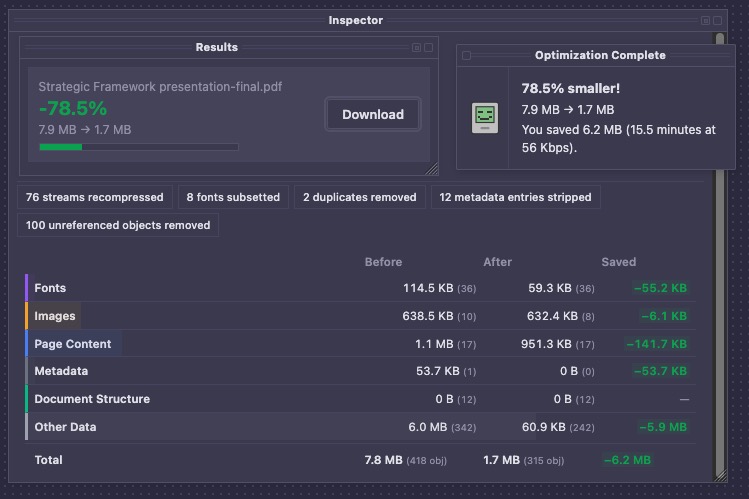
An object inspector shows a before/after breakdown of every PDF object by category, so you can see exactly what changed and why.
Privacy and accessibility#
Files never leave the browser. All processing runs in a Web Worker off the main thread. No accounts, no uploads, no file size limits beyond available RAM.
Fast, reliable and convenient — everything that makes a tool useful.
It auto-detects PDF/A conformance, PDF/UA, and tagged PDFs. When it finds them, it disables font unembedding and XMP stripping to preserve what conformance requires. Structure trees, ToUnicode CMaps, and language tags are carried through. 57 tests verify compression and accessibility preservation across a range of test fixtures.
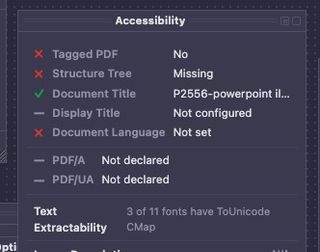
A dedicated Accessibility palette shows what the optimizer finds: a pass/fail checklist for tagged structure, document title, display title (different than the former), language declaration, and conformance standards. The document title, display title, and marked-status checks were inspired by PDFcheck by Jason Morris. Three lightweight audits check ToUnicode coverage (can screen readers extract text?), image alt text in the structure tree, and structure tree depth. The palette also links to external validators — veraPDF, PAC, PDFcheck — for deeper conformance testing.
I haven't fully vetted every edge case, though. If you're working with accessibility-critical documents, test the output. Bug reports in this area are especially welcome.
How it's built#
The core engine uses four open-source libraries:
- pdf-lib — low-level PDF object access (MIT)
- fflate — pure-JS zlib compression (MIT)
- jpeg-js — pure-JS JPEG encoder (BSD 3-Clause)
- harfbuzzjs — WASM font subsetting, lazy-loaded (MIT / Apache 2.0)
The optimization engine runs in a Web Worker so the UI stays responsive during processing. The WASM font subsetter loads as a separate chunk only when font subsetting is needed.
Why it looks like Mac OS 8!?#
The UI borrows its visual structure from Mac OS 8 — floating palettes, striped title bars, WindowShade collapse, warm cream surfaces. It's a design experiment: do late-90s desktop paradigms (persistent tool palettes, dense layouts, always-visible information) suit single-purpose browser utilities better than modern minimal convention?
I wrote a companion post on the design rationale if you want the full argument. Short version: browser tools are used in focused bursts, not browsed casually — the same use pattern floating palettes were designed for. The retro is a thin styling layer; the tool works without it.
But this was a side project and I felt like I wanted a bit of creativity on the side of the side.
Try it, break it, improve it#
PDF-A-go-slim is MIT licensed and on GitHub. If you hit a compression edge case, an accessibility concern, or just have opinions on the floating palettes — I'd like to hear about it.
The Preview palette uses PDF-A-go-go for before/after PDF comparison, so the two projects keep feeding each other. If you've been following the PDF-A-go-go and EmbedPDF posts, this is where the PDF tooling thread goes next. Full credits for inspirations and tools that informed the project are in the README.
 people found this useful