Stop converting SVG text to outlines
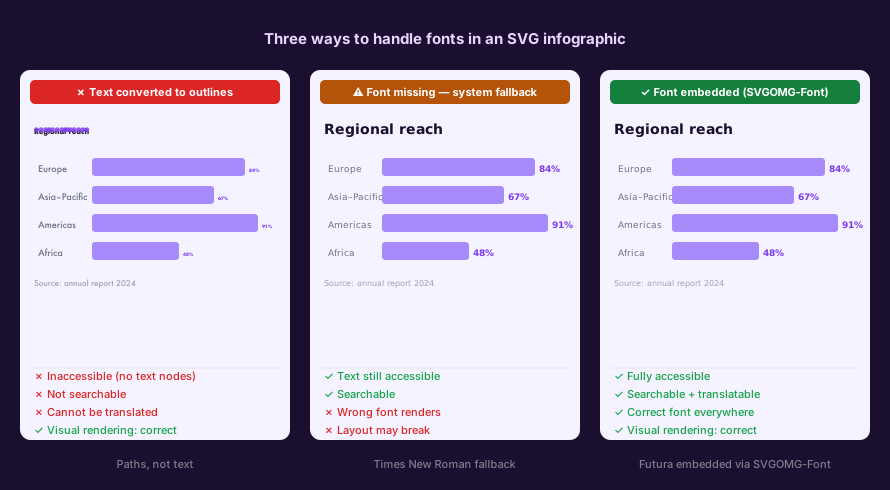 Own work.
Converting text to outlines in SVGs breaks accessibility, search, and translation. I built a tool that embeds the font instead.
Every so often I need to put an SVG with text on a website — an infographic, a diagram, a data visualisation with labels. Each time, I end up staring at the same bad choice.
Option A: Convert the text to outlines. The SVG renders identically everywhere. No font loading, no layout surprises. Done. But now the text is a pile of path data. Screen readers see nothing. Search engines see nothing. Language models see nothing. Translation is impossible. A single typo fix means going back to the source file, regenerating, re-exporting. For every character in every label.
Option B: Leave the text as text. Clean, accessible, editable. But on any device that doesn't have the font installed, the browser falls back to whatever comes first in the system stack, and your carefully spaced infographic turns into a broken layout that looks like someone used Times New Roman on a web 1.0 site.
I've been choosing Option A for years and feeling bad about it. I couldn't find a good third option, so I built one: SVGOMG-Font.
tl;dr
- Converting SVG text to outlines makes it invisible to assistive tech, search, translation, and LLMs
- Leaving text as-is fails on devices without the font installed
- SVGOMG-Font embeds only the font glyphs you actually use, keeping file sizes reasonable
- Drop your SVG, get back a fixed one — entirely in the browser, nothing uploaded
The problem with outlines#
When you tell Illustrator or Figma to "create outlines," it replaces every character with the equivalent vector paths. The rendering is locked in. But you've also just destroyed everything that made the text text:
- Accessibility: screen readers can't read paths. The text is gone from the accessibility tree.
- Search: both on-page (Cmd+F) and crawlers. An SVG infographic full of outlined text is invisible to search engines.
- Translation: auto-translate and localisation tools operate on text nodes. No text nodes, no translation.
- LLMs: if a language model needs to understand what your diagram says, it now has to do OCR or get the content from somewhere else.
- Editability: editing outlined text means going back to the design tool, making the change, re-exporting, re-optimising, re-deploying. Minor corrections become multi-step processes.
There's also a file size argument. For text-heavy SVGs, outline conversion can be surprisingly costly. A few hundred characters of outlined text easily adds tens of kilobytes of path data. Font subsetting — keeping only the glyphs you actually use — often produces a smaller file than the outlined equivalent.
See the live comparison Try SVGOMG-Font
What SVGOMG-Font does#
The tool finds every @font-face reference in your SVG, fetches the font
The output is a standard SVG file with real text — selectable, searchable, translatable — that renders identically everywhere because the font travels with the file.
Drop the SVG in, get a fixed SVG out. No installation, no account, no upload to a server. It all runs in the browser.
Why browser-only matters#
SVGs with fonts are often used in sensitive contexts — client work, unreleased materials, internal tools. Uploading to a third-party service to fix font rendering is a non-starter in a lot of organisations.
SVGOMG-Font processes everything locally. The font data never leaves your machine. The SVG never leaves your machine. It's a single static page.
The subsetting part#
The naive approach — embed the whole font — works but produces large files. A single Latin-subset woff2 file is roughly 20—30 KB, base64-encoded to about 40 KB. Two weights, and you've added 80 KB to your SVG before doing anything else.
SVGOMG-Font subsets to only the characters that appear in the SVG's text nodes, plus a Basic Latin safety baseline (U+0020—U+007E). For a typical infographic with a few hundred unique characters, the subset is usually 5—15 KB encoded. Frequently smaller than what outlining the same text would produce.
There's a toggle for the subsetting if you want to skip it — useful when the SVG will have text dynamically added or replaced after export, and you need the full character set available.
What it handles#
- Fonts referenced via Google Fonts CSS URLs
- Fonts referenced via Fontsource CDN paths
- Cases where the font can't be found automatically: it prompts you to drag the font file onto the relevant row
- Local system fonts on Chromium-based browsers via the Local Font Access API (permission-gated)
- SVGO optimisation (optional, off by default — SVGO's
inlineStylespass removes@font-facerules if you're not careful) - Stripping legacy
<font>/<glyph>blocks that some editors still emit
The boring part I spent too long on#
Font name matching is harder than it should be. SVG editors routinely embed the PostScript name of a font (MarkerFelt-Wide) rather than the CSS-friendly family name (Marker Felt). Matching those against font registries — or against the user's locally installed fonts — requires fuzzy matching, camelCase splitting, suffix stripping (PSMT, MT, PS), and weight token extraction.
The tool does its best. When it can't resolve a font automatically, it tells you which faces are missing and lets you drag the file in directly.
Try it#
SVGOMG-Font is live on GitHub Pages. Drop your SVG in. If it has font references it can resolve, you'll get a fixed file back within a few seconds.
The source is on GitHub. Bug reports welcome — font name matching in the wild has a long tail.
Related posts:
- Your browser utility wants to be a floating palette — the same "do one thing, entirely in the browser" design philosophy
- Introducing Pinment — another tool from the same season
- PDF-A-go-slim: a browser-based PDF optimizer — stripping and compressing PDFs, no upload required
 people found this useful